What Is a PS2 BIOS and Why It’s Important for Emulators and Gaming

The PS2 BIOS is a system file that controls how the PlayStation 2 starts up and runs its software. It’s one of the most important components needed to make a PS2 emulator work properly.
Without it, emulators can’t launch games, manage memory cards, or handle the console’s original functions. It acts like the PS2’s brain, giving emulators the instructions they need to behave like real hardware.
This article explains what the PS2 BIOS is, its importance for emulation, and its impact on game performance. If you’re looking to play on your phone, we’ll also guide you to the PS2 emulators for Android that rely on the correct BIOS to run games smoothly.
What Is a PS2 BIOS?
The PS2 BIOS is a core system file that tells the PlayStation 2 how to start and manage its basic hardware and software. It is responsible for launching the console, checking the system, and preparing everything needed to run a game.
Without it, the PlayStation 2 would not function. When used in an emulator, the BIOS helps recreate the behavior of the original console so games can run smoothly.
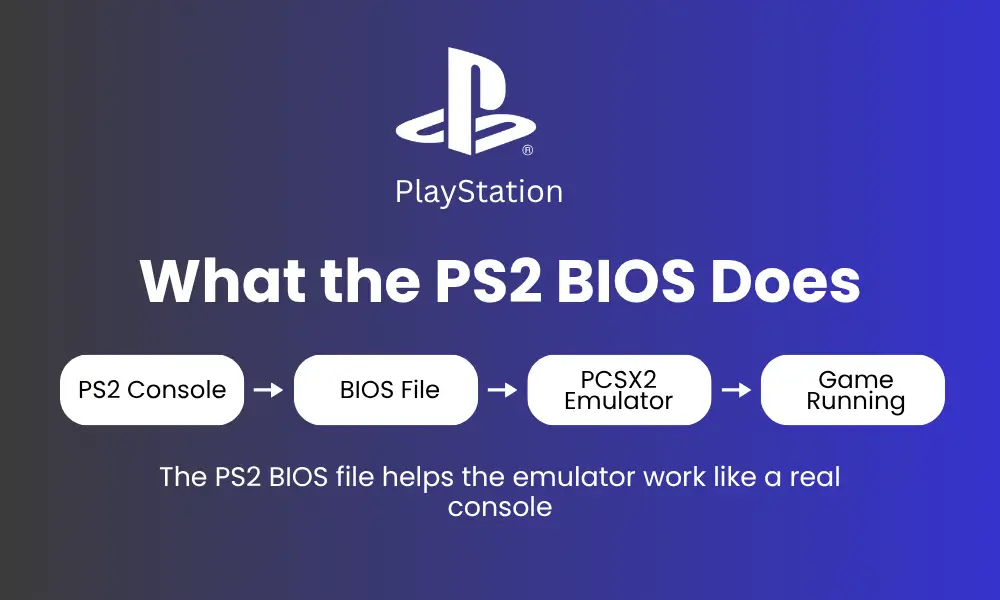
What the PS2 BIOS Does
The PS2 BIOS is the built-in software that powers the PlayStation 2. It handles booting the system, checking hardware, loading game data, and managing settings like sound and time. Without it, the console cannot function or run any game.
How the BIOS Works in Emulators
In emulators, the BIOS helps recreate the behavior of a real PS2. It makes sure games load properly and run with stable performance. Without a correct BIOS file, many games fail to start or face major glitches.
Why the PS2 BIOS Is Essential for Emulation
The PS2 BIOS is required for any emulator to run PlayStation 2 games the right way. It handles core tasks the console would normally perform.
Without it, games may not load at all, or they might crash, freeze, or behave incorrectly. With it, the emulator can work more like the real thing.
Runs Games Correctly and Reliably
The BIOS helps prevent loading errors, black screens, and random crashes. It gives the emulator the instructions it needs to launch and run games the right way. Many games rely on the BIOS to handle specific settings. Without it, you may see missing graphics, long loading times, or bugs during gameplay.
Activates System Features
The BIOS also enables important system features. It allows save files to work, shows the original boot animation, and checks the region of each game to make sure it can play. Without the BIOS, some of these features may be missing or not work at all. This can cause saving errors or block games that are from another region.
Helps Maintain Game Stability
The BIOS helps games stay stable while running. It supports steady frame rates, keeps memory usage in check, and lowers the risk of crashes. Without it, games may lag, freeze, or slow down at random points. A working BIOS gives the emulator what it needs to keep gameplay smooth and reliable.
Why the PS2 BIOS Is Important for Gaming
The PS2 BIOS plays a key role in ensuring that games load, run, and save correctly. On both real consoles and emulators, it handles behind-the-scenes tasks that keep gameplay smooth and free of issues.
Why It Matters:
- Game CompatibilityThe BIOS allows games to load properly. Many titles will not run without it or may crash after startup.
- Region SupportSome games only work with a BIOS from the same region. For example, a Japanese game may not load with a USA BIOS.
- Save System FunctionalityThe BIOS manages virtual memory cards. Without it, you may not be able to save or load your game progress.
- Graphic and Audio AccuracyIt helps display graphics and sound correctly. Missing or wrong BIOS files can cause visual glitches or distorted audio.
- Stable ControlsThe BIOS ensures that the controller input responds smoothly. This is especially important in fast-paced or timing-based games.
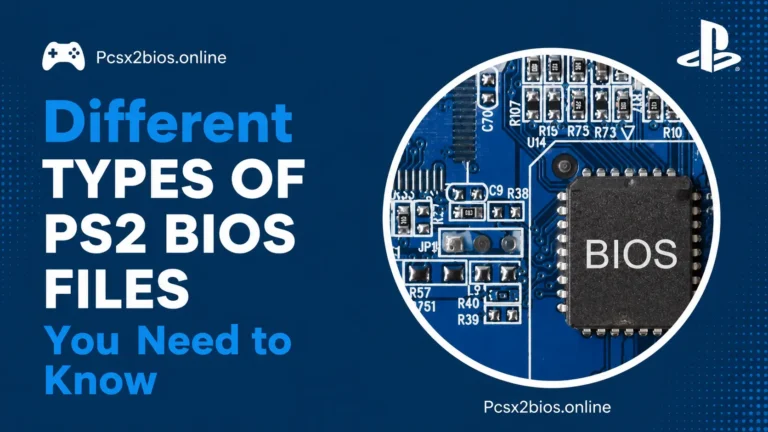
Different Types of PS2 BIOS Files
PS2 BIOS files are not all the same. They vary by region and console model, which can affect how well games run in an emulator. If you’re unsure which one to choose, it’s helpful to understand the different PS2 BIOS types and what each version supports.
Region-Based BIOS Types
PS2 consoles were released with region-specific BIOS files. The main types include:
- NTSC-U— for North America
- PAL— for Europe and Australia
- NTSC-J— for Japan
Each region has its own video format and region lock rules. Some games will not run if the BIOS and game are from different regions. For example, a PAL game may refuse to load with an NTSC-U BIOS. This makes it important to match the BIOS region with your game’s region to avoid compatibility problems.
Understanding SCPH Model Numbers
Each PS2 BIOS file is labeled with an SCPH model number, which reflects the specific hardware it came from. Common examples include:
- SCPH-10000— early Japanese model
- SCPH-30001— original North American “fat” console
- SCPH-90004— later European slim version
The model number affects how the BIOS behaves. Fat models usually have broader compatibility, while slim models may load faster but lack support for some older features. Knowing your model helps in selecting the right BIOS for your setup.
Which BIOS Is Best for PCSX2
For most users, a stable and widely tested BIOS version works best with the PCSX2 emulator. These include:
- SCPH-39001— known for strong compatibility and fewer issues
- SCPH-70012— works well with both fat and slim game titles
To avoid problems, always match the BIOS region with both the game and your PCSX2 settings. Using a trusted BIOS improves performance, reduces crashes, and ensures better support for save files and controller input.
How to Choose the Right BIOS for Your Games
Choosing the correct PS2 BIOS helps avoid common problems like freezing, crashing, or region lock errors. Getting this step right makes your emulator run more like the real console.
Match BIOS to Game Region
Each game is made for a specific region, and using the correct BIOS for that region helps it load and run without issues.
- NTSC-UBIOS works best with North American games
- PALBIOS is used for European and Australian releases
- NTSC-JBIOS supports Japanese titles
- A mismatched BIOS may cause errors, crashes, or black screens
Use Multiple BIOS Versions if Needed
If you play games from different regions, keep more than one BIOS file.
- Store all BIOS files in the emulator’s BIOS folder
- Switch to the correct one based on the game’s region
- This improves compatibility across various titles
Check Compatibility Lists
Some BIOS files work better with specific games.
- Check forums like PCSX2 for tested BIOS versions
- Use lists to avoid guessing and setup errors
- Helps improve game stability and performance
Can You Use an Emulator Without a BIOS?
No, you cannot use a PS2 emulator properly without a BIOS. It is a required file that handles the system functions of the PlayStation 2.
PCSX2 and other PS2 emulators will not load most games without a valid BIOS file. The BIOS acts as the base layer that connects the emulator to the game code. Without it, the emulator cannot start or run games correctly.
Top Devices That Support PS2 BIOS Emulation

If you have the right PS2 BIOS file, you can run classic PlayStation 2 games on many modern devices. But not every device gives the same performance. Some handle emulation better because of stronger hardware and better support.
High-End Smartphones
Some newer smartphones are powerful enough to run PS2 games using emulators like AetherSX2 or DamonPS2 Pro. With the right setup, your phone can feel like a mini console.
Look for phones that offer:
- 8GB RAM or more
- Snapdragon 800 series or similar processor
- Android 11+ or iOS with strong app support
If your phone checks these boxes, it can run many PS2 games smoothly.
Personal Computers (Windows, macOS, Linux)
A PC gives you the most control over settings and usually the best performance. The PCSX2 emulator works great on most mid to high-end setups.
For smoother emulation, your system should have:
- At least a quad-core CPU
- A dedicated graphics card
- 8GB RAM or higher
Windows is the most common platform, but macOS and Linux also support emulators with some extra setup.
Tablets and Gaming Laptops
Other devices like tablets and gaming laptops also handle emulation well, especially if they are built for performance.
- Gaming laptopsusually come with the hardware needed to run even the most demanding PS2 titles
- High-spec tabletscan run emulators, offering a larger screen and decent touch controls
With a compatible BIOS and a good emulator, these devices can bring back the PS2 experience without needing the original console.
How to Set Up PS2 Emulation Using the BIOS File
Setting up a PS2 emulator with a BIOS file ensures your games load correctly and system features work as they should. Follow these steps to set up PCSX2 with a working BIOS.
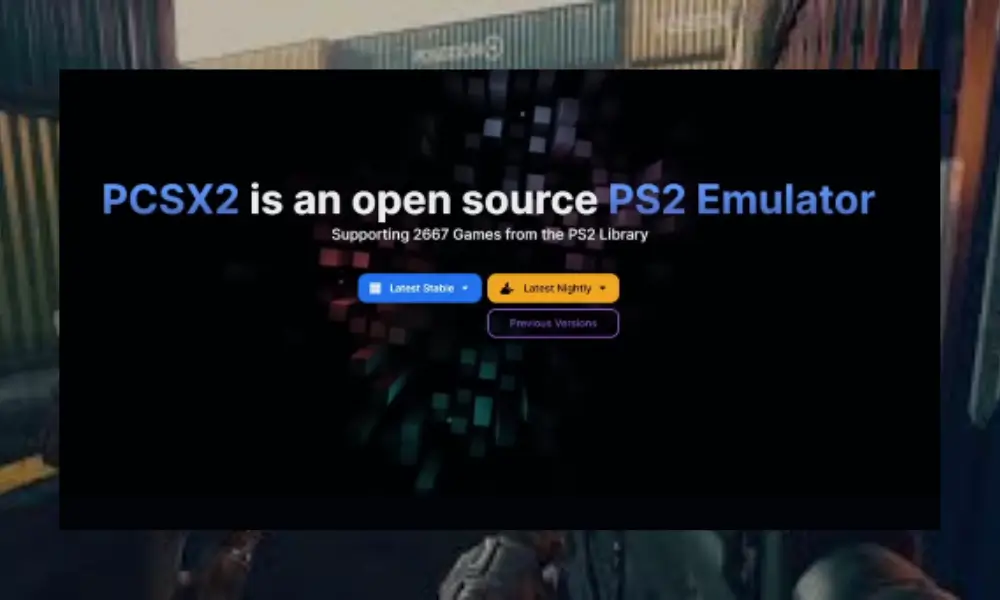
Step 1:Download and Install the Emulator
Start by downloading PCSX2 from the official website and installing it on your computer.
- Visit the officialPCSX2site
- Choose the correct version for your OS (Windows, Linux, or macOS)
- Complete installation and open the emulator
Step 2:Create a BIOS Folder
PCSX2 needs a dedicated folder to store the BIOS file. Create it inside the emulator’s directory.
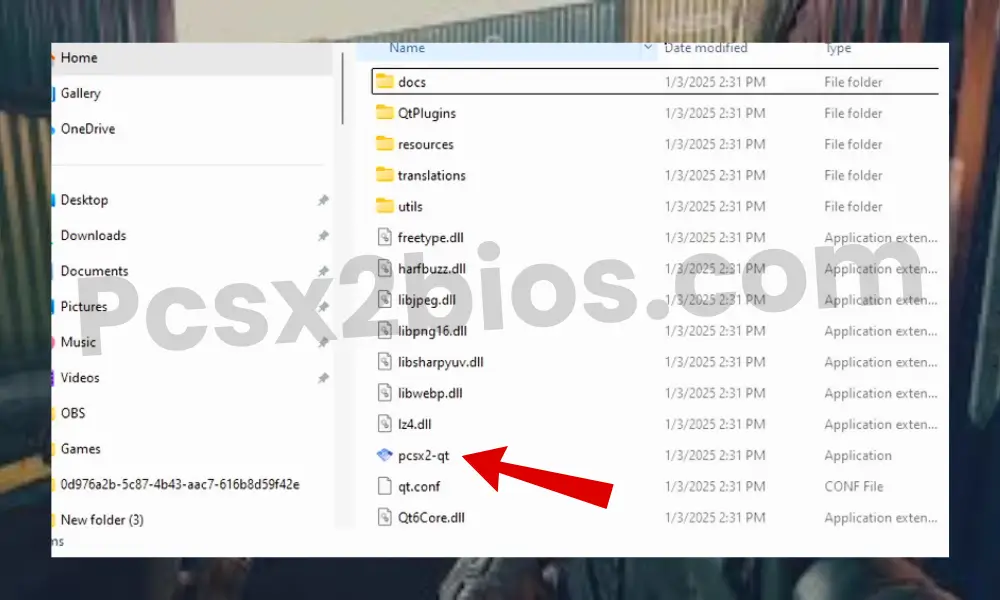
- Open the PCSX2 installation folder
- Create a new folder and name it bios (all lowercase)
Step 3:Dump the BIOS from Your PS2 Console
To stay legal, you should extract the BIOS from your own PS2 using approved tools.
- Use Free McBoot or the BIOS Dumper utility on your console
- Save the BIOS file to a USB drive
- Transfer the file to your computer
Step 4:Place the BIOS File in the Correct Folder
Move your BIOS file into the folder you just created to allow PCSX2 to detect it.
- Make sure the BIOS file (e.g.,scph39001.bin) is unzipped
- Place it inside the bios folder
- Check that the file is complete and correctly named
Step 5:Launch PCSX2 and Select BIOS
Now it’s time to connect your BIOS file to the emulator.
- Open PCSX2
- Go to Config > BIOS Selector
- Select your BIOS file from the list and confirm
Step 6:Test the BIOS Setup
To make sure everything is working, run the emulator without a game loaded.
- PCSX2 should boot into the PS2 system menu
- If you see the console interface, your BIOS is set up correctly
Step 7:Adjust Settings for Optimal Gameplay
Make final adjustments to improve game performance and controls.
- Set up controller input under the Input settings
- Enable speed hacks if needed
- Choose a rendering mode (OpenGL or DirectX)
- Adjust resolution and audio settings to suit your system
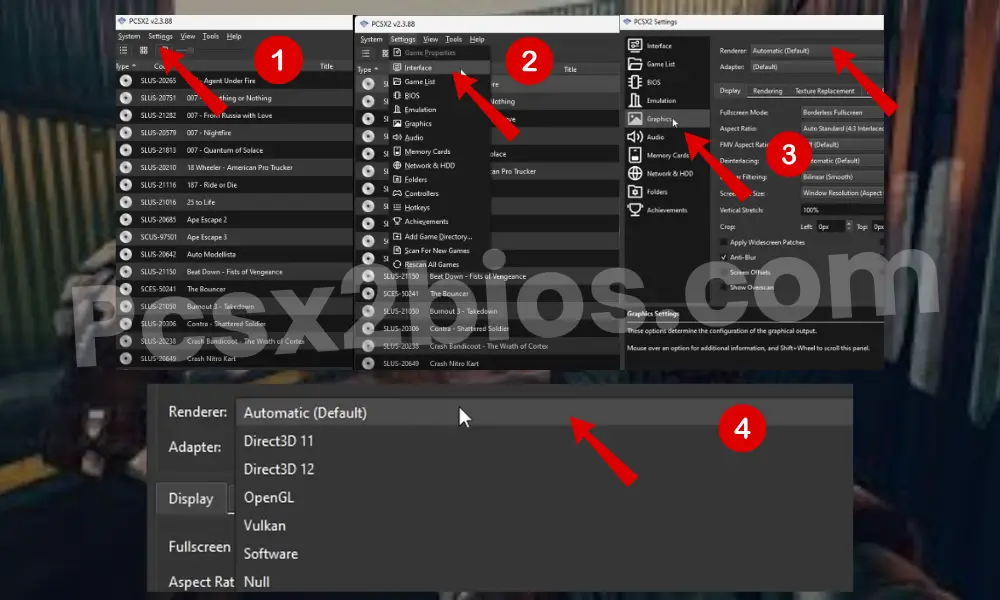
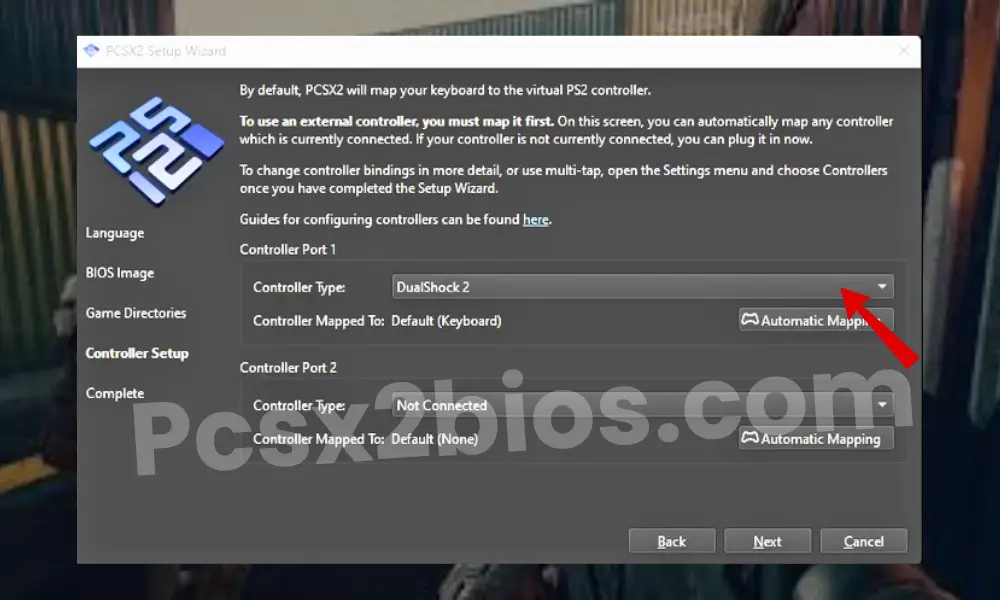
Once you finish these steps, your emulator will be ready to run PS2 games with full BIOS support.
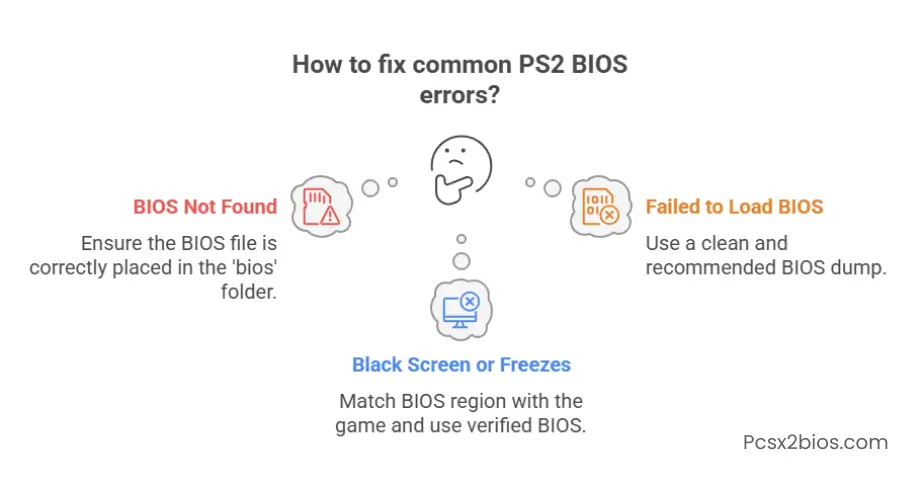
How to fix common PS2 BIOS errors?
Tips for Better Emulation Performance
Getting PS2 games to run well on an emulator depends on more than just the BIOS file. A few small changes can lead to smoother gameplay, fewer glitches, and faster loading.
BIOS-Related Optimizations
Getting the BIOS part right gives your emulator a strong foundation. If something feels off during gameplay, this is a good place to start.
- Always use a clean BIOS dump taken from your own PS2 console
- Make sure the BIOS file matches the region of the game you are trying to play
- Keep your emulator updated to support the latest BIOS versions and fix known bugs
General Emulator Settings
Beyond the BIOS, PCSX2 and similar emulators offer several settings that help boost performance without breaking anything.
- Use speed hacks only if needed, and test them one at a time to avoid instability
- Adjust the internal resolution based on your system’s strength; lower settings are better for older PCs
- Enable async audio to reduce sound delay and use fast boot to skip the intro screen for quicker startup
These small adjustments can turn a choppy or slow experience into one that runs smoothly from start to finish.
Final Thoughts
The PS2 BIOS is the heart of any PlayStation 2 emulator. Without it, no emulator can run games the way they were meant to be played. It handles everything from booting the system to saving your progress. Getting the BIOS setup right means fewer crashes, smoother gameplay, and full system features like memory card support and region handling.
If you’re just starting with emulation, take time to get your BIOS from a legal source, match it to your game region, and adjust your settings based on your device. Once that’s done, you’ll be ready to enjoy smooth, console-like gaming right from your system.
Using an emulator can reduce game lag and crashes, providing a smoother and more comfortable gaming experience. To commemorate these joyful gaming moments, players can create custom items for their collection. Custom Pins are a great option.
Custom game-themed pins can even incorporate emulator-related elements into the design, making them even more representative of the joyful and comfortable gaming experience. Custom pins can also be used as accessories, adding a striking finishing touch to any outfit.
Frequently Asked Questions
Can I run PS2 games in an emulator without a BIOS?
No, you cannot. The BIOS is essential for starting the emulator and loading games. Without it, the emulator won’t function properly and most games will not start.
Where do I place the BIOS file in PCSX2?
Place the BIOS file inside a folder named bios in your PCSX2 installation directory. Make sure the file is unzipped and correctly named.
What is the use of PS2 BIOS?
The PS2 BIOS helps emulators run games by handling system functions like booting, saving, and region checks. It lets the emulator act like a real PlayStation 2.
Do Android emulators need a BIOS too?
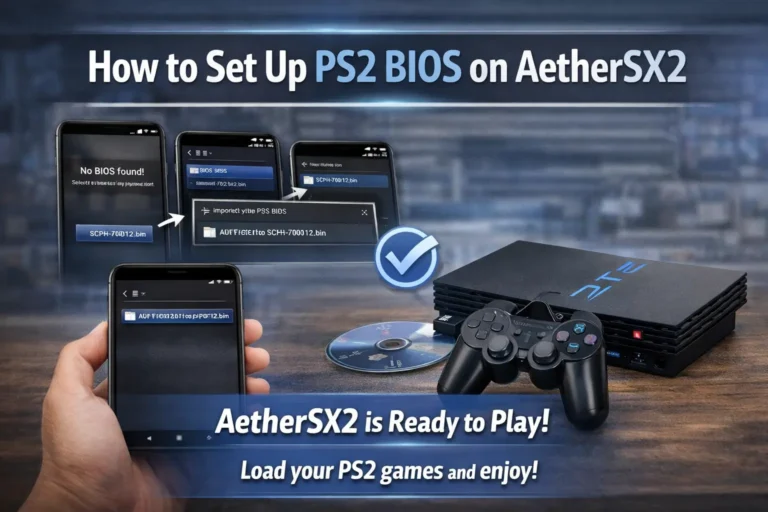
Yes. Android emulators like AetherSX2 also require a correct PS2 BIOS file to load and run games smoothly.