
How to Get and Install PS1 BIOS for DuckStation
DuckStation needs a PlayStation BIOS to start the emulator and run PS1 games. The emulator does not include Sony’s BIOS files, so you need to provide a BIOS image from a PlayStation console you own. DuckStation’s current setup interface also includes an Install BIOS option for adding the image.
The process is simple once you have a valid BIOS dump. On PC, you can install it directly through DuckStation’s BIOS settings. On Android, DuckStation prompts you to import a BIOS image when you start a game for the first time.
This guide explains how to get the right PS1 BIOS, install it on PC or Android, choose the appropriate region, and fix common BIOS detection problems.
Do You Need a PS1 BIOS for DuckStation?
Yes. DuckStation requires a PS1 or PS2 BIOS ROM image to start the emulator and play games. For PS1 emulation, you need a compatible PlayStation BIOS image. The BIOS contains the firmware used by the original PlayStation. DuckStation uses it as part of the PS1 system emulation process. If DuckStation cannot find a suitable BIOS, the emulator cannot proceed normally with PS1 game emulation.
What happens when DuckStation cannot find a BIOS?
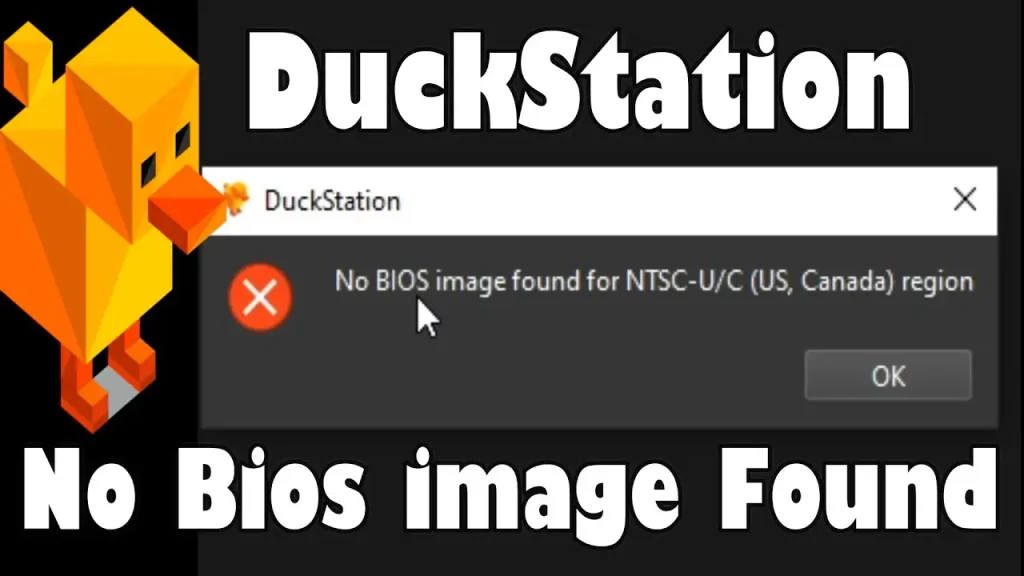
You may see a message indicating that no BIOS image was found, or DuckStation may ask you to provide one before a game starts. The solution is to provide a valid BIOS image and make sure DuckStation can find it.
How to Get a PS1 BIOS for DuckStation
DuckStation’s own setup instructions tell users to obtain the BIOS from an actual PS1 or PS2 unit they own and create an image of the console’s BIOS ROM. The project specifically mentions using Caetla or another suitable utility for creating the BIOS image.
That means the recommended process is:
- Use a PlayStation 1 that you own.
- Dump its BIOS ROM using an appropriate BIOS-dumping method.
- Keep the resulting BIOS image on your computer or transfer it to your Android device.
- Import the image into DuckStation.
A random BIOS file from the internet may be corrupt, incomplete, modified, or from a different region. Starting with a BIOS dump from your own console also gives you a known source for the file.
If you need information about PS1 BIOS versions and filenames, you can also see the site’s PS1 BIOS files guide.
What should you check before installing a BIOS?
Before importing the file, check that:
- It is an actual PS1 BIOS image.
- The file has been extracted if it came inside an archive.
- The BIOS dump is complete and usable.
- The region is suitable for your games.
- DuckStation can identify the image.
A .bin extension alone does not prove that a file is a valid PS1 BIOS. DuckStation examines BIOS images when it scans them and maintains information about supported BIOS images and regions.
Which PS1 BIOS Is Best for DuckStation?
There is no single PS1 BIOS that is best for every game. DuckStation supports BIOS images from different PlayStation hardware versions and regions. Its documentation says you can use an image from any hardware version or region, although a mismatch between the game region and BIOS region can cause compatibility problems.
For most users, the useful starting point is the BIOS region.
| BIOS File | Region | Recommended Use |
|---|---|---|
| SCPH1001.BIN | USA (NTSC-U) | Most U.S. games; high compatibility |
| SCPH7502.BIN | Europe (PAL) | Best for European PS1 games |
| SCPH5500.BIN | Japan (NTSC-J) | Use for Japanese imports |
If your library is mostly North American games, an NTSC-U BIOS is a practical choice. For European games, a PAL BIOS may be more appropriate. Japanese releases can use an NTSC-J BIOS.
Do PS1 BIOS versions matter?
You may encounter BIOS filenames containing PlayStation model numbers, such as:
SCPH-1000SCPH-1001SCPH-1002SCPH-5500SCPH-5501SCPH-5502SCPH-7502
These identify different PlayStation BIOS versions. The filename itself does not make one BIOS universally better. A valid BIOS from an appropriate console region is generally the more useful choice.
Can you use more than one PS1 BIOS?
Yes. DuckStation can detect BIOS images in its configured BIOS directory and can select BIOS images for different console regions. Its BIOS system includes separate region handling for NTSC-J, NTSC-U, and PAL. This is useful if you play games from several regions.
How to Install PS1 BIOS in DuckStation on PC
Current desktop versions of DuckStation provide an Install BIOS… option. This is the easiest way to add a BIOS instead of manually copying the file into a folder.
1. Prepare your BIOS file
Make sure you have the BIOS image available on your computer. If it is inside a ZIP or another archive, extract it first. Keep your original BIOS dump somewhere safe in case you need to reinstall DuckStation later.
2. Open DuckStation’s BIOS settings
Launch DuckStation and open its settings. Go to the BIOS section. Current versions provide controls for installing and managing BIOS images.
3. Select “Install BIOS…”
Click Install BIOS….
Browse to the location where you saved your PS1 BIOS image and select the file. DuckStation checks the BIOS image during the installation process before adding it to its BIOS directory.
4. Confirm the BIOS
After installation, return to the BIOS settings. The BIOS should now appear in DuckStation’s available BIOS list. Check its detected region and select the appropriate BIOS for your games if you have more than one installed.
5. Start your PS1 game
Once DuckStation recognizes the BIOS, you can start your PS1 game. You do not need to install the BIOS again for every game. The same installed BIOS can be used across your PS1 library when it is suitable for the required region.
How to Install PS1 BIOS in DuckStation on Android
The Android workflow differs from the desktop version. According to DuckStation’s current project instructions, you install and run the app, add your game directory, and start a game. When you start a game for the first time, DuckStation prompts you to import a BIOS image.
1. Transfer your BIOS file to Android
Move your PS1 BIOS dump to your Android device. You can transfer it using USB, cloud storage, or another file-transfer method. Put it somewhere you can easily locate with Android’s file picker.
2. Open DuckStation
Launch DuckStation and complete its initial setup. Add the directory containing your PS1 games if you haven’t already done so.
3. Start a PS1 game
Tap a game in DuckStation. During the first launch, DuckStation prompts you to import a BIOS image.
4. Import the BIOS
Use the import option and browse to the location containing your BIOS image. Select the appropriate file or directory when prompted.
5. Check the detected BIOS
Once the BIOS is imported, DuckStation should be able to use it for PS1 emulation. If the BIOS isn’t detected, check the file and its location before trying to change the filename or extension.
Where Does DuckStation Store PS1 BIOS Files?
DuckStation stores BIOS images in its user directory. The current official documentation lists these desktop locations:
| Platform | User directory |
|---|---|
| Windows | AppData\Local\DuckStation |
| Linux | $XDG_DATA_HOME/duckstation or ~/.local/share/duckstation |
| macOS | ~/Library/Application Support/DuckStation |
The BIOS files go inside the bios directory under the DuckStation user directory.
For example, on Linux:
~/.local/share/duckstation/biosWindows users can avoid searching through AppData manually. DuckStation provides Tools > Open Data Directory, which opens the application’s user directory directly.
What if you’re using a portable DuckStation installation?
DuckStation also supports a portable configuration. According to the current documentation, creating an empty file named portable.txt in the same directory as the DuckStation executable makes the user directory use the executable’s location. This is useful when you want DuckStation’s settings, BIOS files, and other user data kept with the portable installation.
How to Fix DuckStation BIOS Not Detected
If DuckStation doesn’t recognize your BIOS, check the following items in order.
Check that the BIOS is in the correct location
If you manually copied the BIOS, make sure it is inside DuckStation’s configured BIOS directory.
On desktop, use Tools > Open Data Directory to find the current user directory.
Make sure the file is extracted
DuckStation needs to read the BIOS image itself. If the BIOS is still inside a ZIP, RAR, or another archive, extract it before importing or scanning it.
Check whether the file is a valid BIOS
A file named SCPH1001.BIN is not automatically a valid BIOS. DuckStation has BIOS detection and validation code that identifies supported BIOS images and checks whether a BIOS can be used for the requested region. If DuckStation rejects the file, a fresh BIOS dump is preferable to repeatedly renaming or modifying the existing file.
Check the BIOS region
DuckStation supports BIOS images from different regions, but it can check whether a BIOS is valid for the requested console region. If you have several BIOS files, check which one DuckStation has selected.
For example:
- NTSC-U BIOS for North American games
- PAL BIOS for European games
- NTSC-J BIOS for Japanese games
Refresh the BIOS list
If you copied a BIOS into the directory manually, refresh the BIOS list in DuckStation. The current BIOS settings include controls for refreshing the detected BIOS list.
Check for a corrupt BIOS dump
If the BIOS still isn’t detected after checking the directory and region, the image itself may be invalid. DuckStation’s BIOS code searches for supported BIOS images rather than accepting every file placed in the BIOS directory. In that situation, create a fresh BIOS dump from your own PS1.
Can You Use Multiple PS1 BIOS Files in DuckStation?
Yes. DuckStation can detect multiple BIOS images in its configured BIOS directory and maintain BIOS choices for different PlayStation regions. This is useful if your game collection includes releases from different regions.
For example, you might keep:
- An NTSC-U BIOS for North American games
- A PAL BIOS for European games
- An NTSC-J BIOS for Japanese games
You can then select the BIOS that fits the game region when required.
Can You Use a PS1 BIOS With Other Emulators?
A PS1 BIOS image isn’t inherently restricted to DuckStation. A valid PS1 BIOS may also be supported by other PlayStation emulators, but each emulator can have its own BIOS directory and configuration process. DuckStation’s own documentation states that its BIOS system can use images from different PlayStation hardware versions and regions. If you’re moving an existing PS1 BIOS from another emulator to DuckStation, check that:
- The file is a valid PS1 BIOS.
- The BIOS region is suitable for your game.
- DuckStation can detect the image.
- The file is placed in DuckStation’s configured BIOS location or imported through its BIOS controls.
You don’t need to configure RetroArch settings just to use DuckStation.
Does DuckStation Need a BIOS for Save States?
The BIOS requirement and save-state feature are separate parts of DuckStation. DuckStation stores save states in its user directory alongside other emulator data. The current documentation describes the user directory as the location for BIOS images, settings, memory cards, and save states. You still need a BIOS to run PS1 games in DuckStation, but a separate BIOS installation isn’t required for each individual save state.
DuckStation PS1 BIOS setup checklist
Before starting your first game, check these points:
- You have a valid PS1 BIOS image.
- The BIOS came from a PS1 you own.
- The file has been extracted from any archive.
- DuckStation can detect the BIOS.
- The BIOS region matches the games you intend to play.
- The correct BIOS is selected when multiple images are available.
- Your game is located in a directory DuckStation can access.
Once the BIOS appears correctly in DuckStation, the BIOS portion of the setup is finished. You can then configure other emulator settings separately.
Frequently asked questions
What is the best PS1 BIOS for DuckStation?
Use a valid BIOS that matches the region of the games you play. DuckStation supports BIOS images from different PlayStation hardware versions and regions, so there isn’t one BIOS that is universally best.
How do I import PS1 BIOS to DuckStation?
On current desktop versions, open the BIOS settings and select Install BIOS…, then choose your BIOS image. On Android, DuckStation prompts you to import a BIOS image when you start a game for the first time.
Why does DuckStation say no BIOS image was found?
The BIOS may be missing, stored outside the configured BIOS directory, invalid, or unsuitable for the selected region. Check the file, directory, and BIOS region before trying another image.
Can I use a BIOS from another PS1 emulator?
If the image is a valid PS1 BIOS supported by DuckStation, it may be usable. You still need to import it or place it in DuckStation’s configured BIOS directory.
One Comment